from the following places:
If you use the same develop settings on your images, you can save the setting as a preset. Presets allow you to quickly apply changes to an image without having to repeat the steps each time you want to apply the same change. For example, if you always correct your images using the Contrast tool with the value of 25, you can save this setting as a preset and quickly apply it to change the contrast in your images. You can also use presets to ensure that settings are applied consistently in your images. You can create a preset with one or multiple develop settings.
You can apply as many presets as you want to an image. Each time you add a preset, the settings are applied on top of the previous settings.
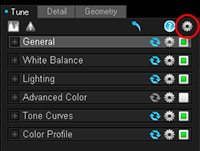
You can create and access presets by clicking the develop settings button from the following places:
|
Top of the pane
|
Presets created from here include all of the image corrections from Tune, Detail, and Geometry tabs. Presets created at this level can be accessed from Manage and View mode. In Manage mode, presets can be applied to multiple images at a time. |
|
Tune, Detail, or Geometry tabs
|
Presets creates from a tab can contain the develop settings from all of the groups within that tab. A preset created in a tab can only be accessed through the same tab.
|
|
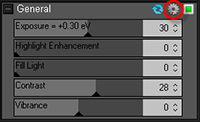
Groups in the tabs
|
Presets created in a group can contain the develop settings from that group. A preset created in a group can only be accessed through the same group. |
To create a preset from the top of the pane:
To create a preset from a tab:
To create a preset from a group:
To apply a preset to a single image in Develop:
The image is updated with the selected preset.
You can also apply presets to an image in the filmstrip. Select an image in the filmstrip, right-click and select Apply Preset. Then select the preset you want to apply to the image. The image is updated with the selected preset.
To apply a preset to a single image in View mode:
The image opens in View mode.
The image is updated with the selected preset.
Applying a preset to multiple images helps to save time, and improve the efficiency of your workflow.
To apply a preset to a batch of images in Manage mode:
The thumbnail images are updated to reflect the preset applied.
You can rename a preset at any time.
To rename a preset:
You can delete presets that you no longer need. Deleting a preset does not affect images that already have the preset applied.
To delete a preset: