You are here: What's New in Canvas 12
What's new in Canvas 12
Canvas 12 provides the following new features:
-
Greater control and enhancements for technical illustrations: Learn about the Symbol Library, Symbol Pen, Smart Vector Fill tool, Smart Join tools, and precise perimeter-based scaling. See Technical illustration and enhancement with greater control.
-
Better integration in your technical illustration workflow: Learn about the new 3D View and Enhanced AutoCAD file support, CGM4 file support, including WebCGM, geometric import and export, multi-save, and EXIF data. See Even greater workflow integration.
-
Added capabilities for publishing, presenting and collaborating on your technical data: Learn about the improved Link Manager (with Hotspots), the new Page Navigator, and the improved flowchart tools. See Additional Capabilities for Publishing, Presenting and Collaborating.
-
Enhanced usability: Learn about the new Docking pane and many other usability enhancements. See Enhanced usability.
Technical illustration and enhancement with greater control
Canvas 12 includes many new features that allow you to create and enhance technical illustrations with even greater ease and control.
Symbol Library
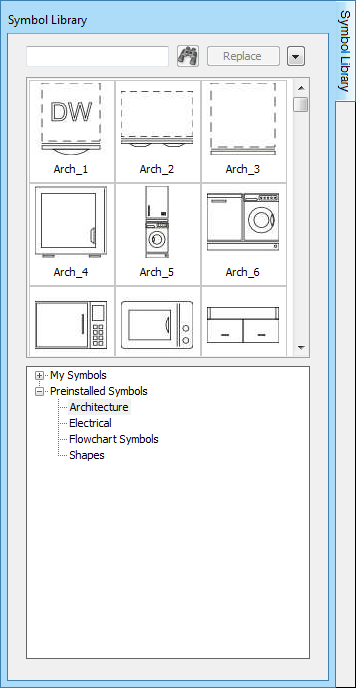
Create custom symbols and easily organize new Canvas symbol sets. With Canvas 12, any vector object can be made into a symbol. Canvas 12 also includes thousands of commonly used and highly specialized technical symbols, with more available for download. With the new and improved Symbol Library, you can easily organize your large library by adding keywords and re-categorizing symbols to match your unique workflow.
Symbol Pen
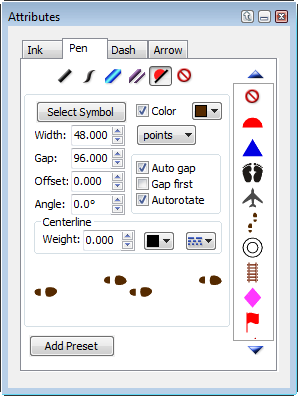
Create custom “pen strokes” made from symbols. Draw with these repeated symbol motifs as you would with any other digital pen stroke.
|
|
Smart Vector Fill
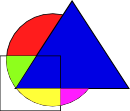
Color visually-enclosed regions created by overlapping objects. When overlapping object shapes create a new shape where they intersect, you can now instantly select this shape, and color it, with just one click. This eliminates the need to redraw these regions as standalone objects before selecting a fill ink.
Smart Join
Use the new Smart Join command to quickly rejoin segmented objects into a singular object.
|
|
Precise perimeter-based illustration scaling
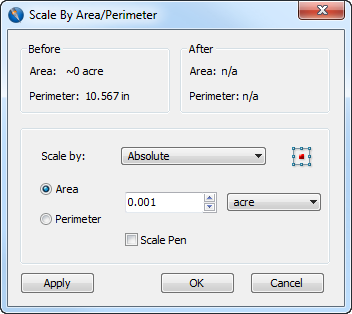
Quickly and accurately scale illustrations numerically. Scale simple vector objects based on area or perimeter values. Simply enter a value in the Scale By Area/Perimeter dialog box, choose Percentage or Absolute, and click a different origin point if desired. You can even scale a pen weight.
Even greater workflow integration
Canvas 12 provides an integrated and highly precise technical illustration and publishing environment which enables you to manipulate and visualize technical data. You can import over 100 file formats, from the most common to the most specialized, and export to over 80 formats and presentation media. With Canvas 12, this capability has been extended even further.
3D view and enhanced AutoCAD file support
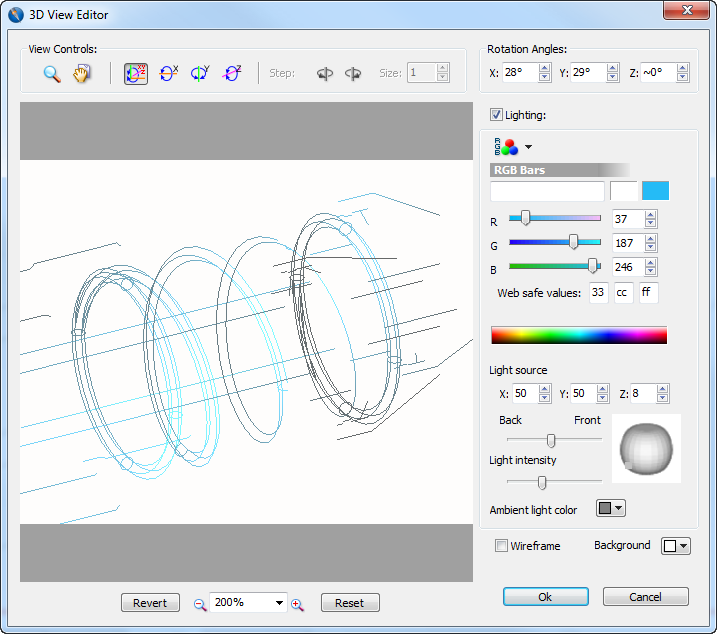
View and enhance the latest AutoCAD® DXF/DWG 3D object file formats. Just import your 3D file, use step rotation on an X, Y, or Z axis, edit and enhance color, scale, light source, and preview it in Wireframe. With Canvas 12, you can now fit seamlessly into AutoCAD® 3D workflows.
CGM4 file support, including WebCGM
Import, edit and export CGM and WebCGM files. Canvas 12 can be fully integrated into CGM workflows because it supports the latest CGM file types, including Version 4 CGM-PIP I/II (Petroleum Industry Profile), and CGM-ATA (Airline Transportation Association). And now when you import and modify CGM files, WebCGM tags are retained. After editing and visually augmenting files, export them back into CGM work environments and specialized CGM applications. The Canvas 12 integration into CGM workflows allows for new possibilities in the visual presentation of CGM files, including on the web.
Geometric import and export
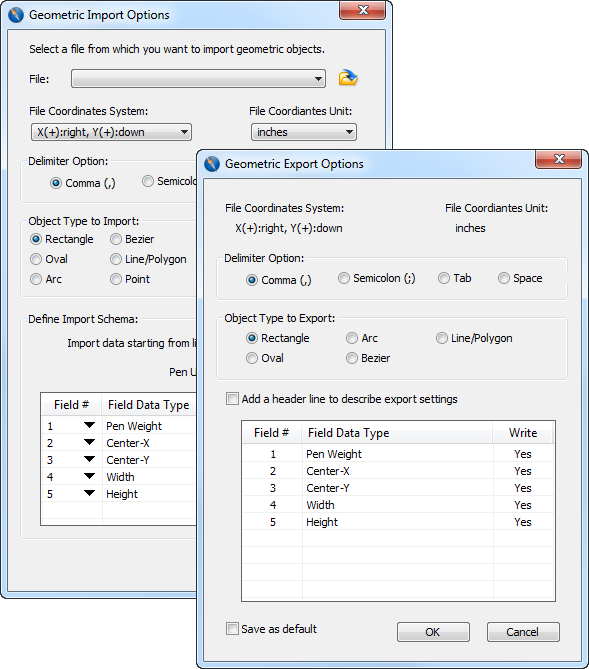
Import and export an object’s precise geometry. The new Geometric Import And Export feature lets you import and export mathematical data that numerically describes an object’s exact geometry. This allows for powerful integration with other applications such as Microsoft® Excel® and specialized software. It also lets you precisely specify and manipulate both the location and geometric dimensions of Rectangles, Ovals, Lines, Polygons, Beziers and Arcs.
Object Properties Table View
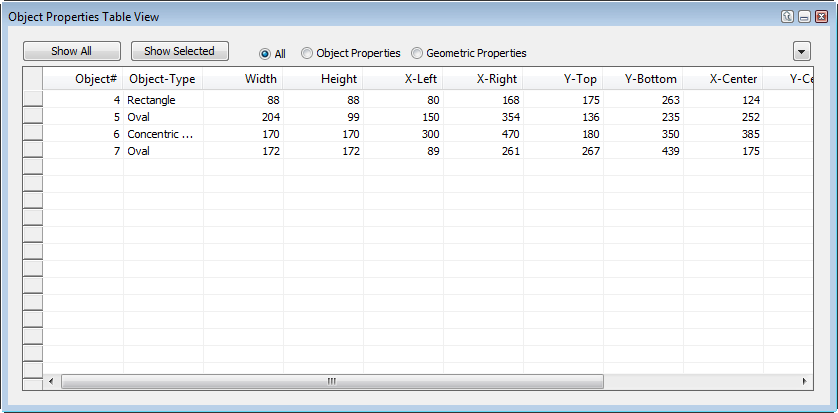
Additionally, you can now see an object’s geometric properties in a spreadsheet-like grid, directly in Canvas itself, using the Object Properties Table View palette. Or use the Statistics by Property or Select by Property commands to view or select particular objects based on a property.
Multi-save
Export to many formats simultaneously. Export documents to many formats at once with just one click by using the new Multiple Save command. In the Save As dialog box, choose your desired export formats, including BMP, CGM, GIF, JPG, PCX, PDF, PNG, TGA, and TIF. Select the Multiple Save check box, then click Save. From then on, Canvas will save to all the formats you have selected.
EXIF metadata
See the Exchangeable Image File Format (EXIF) metadata that’s attached to imported digital images (primarily photos), such as: date and time; camera settings including aperture, shutter speed, focal length and ISO speed; and GPS coordinates and other GIS data including elevation, facing and more.
Additional Capabilities for Publishing, Presenting and Collaborating
Link Manager (with hotspots)
Add hyperlinks to documents and then export them. Create links throughout Canvas documents, making them out of graphics, images, or text. Then export to PDF or HTML with the links intact. You can also create hotspots (linked regions within graphics) for PDF export. Use Canvas 12 to add interactivity and connectivity to your technical documents.
Page Navigator
Easily move within multiple page documents. In the Page Navigator palette you can instantly navigate within multiple page Illustration, Publication, Animation and Presentation documents. Just click on a page thumbnail. Page Navigator is both dockable and floatable for extra convenience.
Improved Flowchart tools
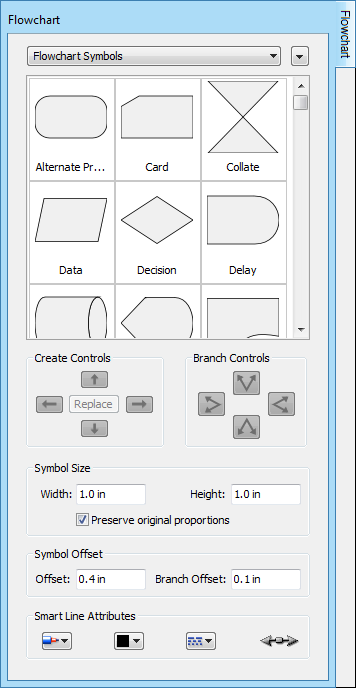
Create rich data flowcharts almost automatically. With the Flowchart palette you can make data flowcharts with new speed and flexibility. Just choose your symbol size, shape, and Smart Line attributes, and click to place. Then click repeatedly in the document at the points where you want your flowchart to appear. It’s almost automatic, and yet it allows for custom design flexibility too with a wide variety of connection line and shape editing options. You can customize how your flowcharts will look ahead of time, or edit them after the fact. Present complex and visually rich information in a logical and easy to understand flow.
|
|
Enhanced usability
Docking pane
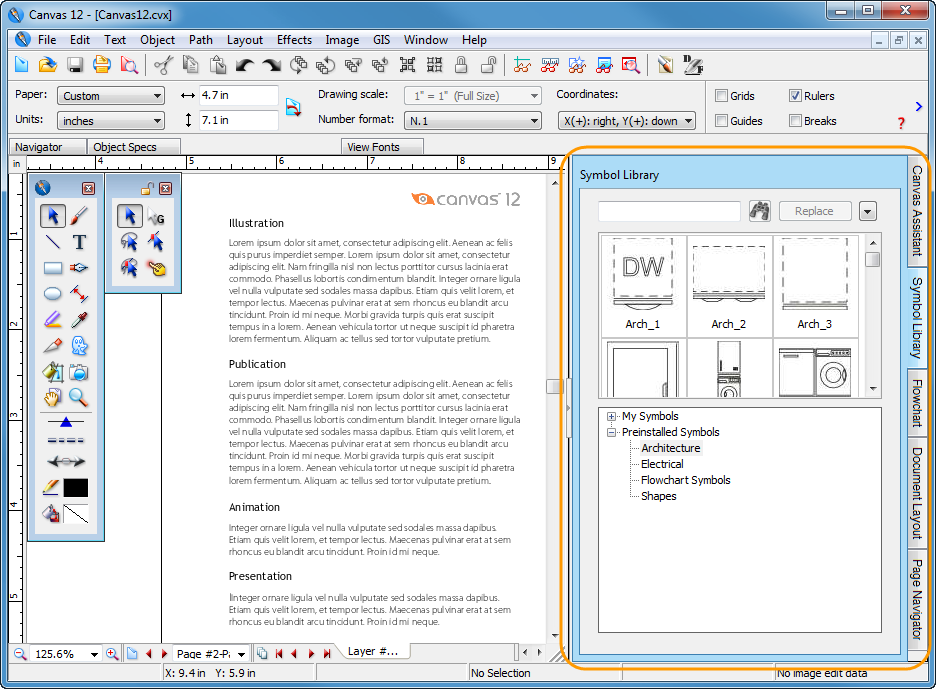
Efficiently manage your palettes and work area. Display, re-arrange, and instantly float or re-dock multiple core Canvas palettes quickly and easily. Use the navigation tabs to further increase your on-screen organizing capabilities. The Docking Pane, located on the right side of the window, saves you time and helps free up valuable work space for visually complex projects.
Many workflow enhancements
Canvas 12 includes many enhanced and dynamic user interface (UI) elements, and improvements to existing features, such as: Acre (an additional area format unit); new Area of Object displays; a Dimension Area global setting override; new Properties bar shortcuts for Number Format, Coordinates Format, and X,Y Arrows of Direction; a Set Default Attributes button in the Toolbar; Windows 7 support (with related UI enhancements); and increased Points Limits (crucial for GIS documents).